HivemindOS manual
Fleet telemetry and Hivemind Link
HivemindOS watches agents across your machines by polling a small collector on each one. The dashboard reaches remote collectors privately over Hivemind Link or your own Tailscale network.
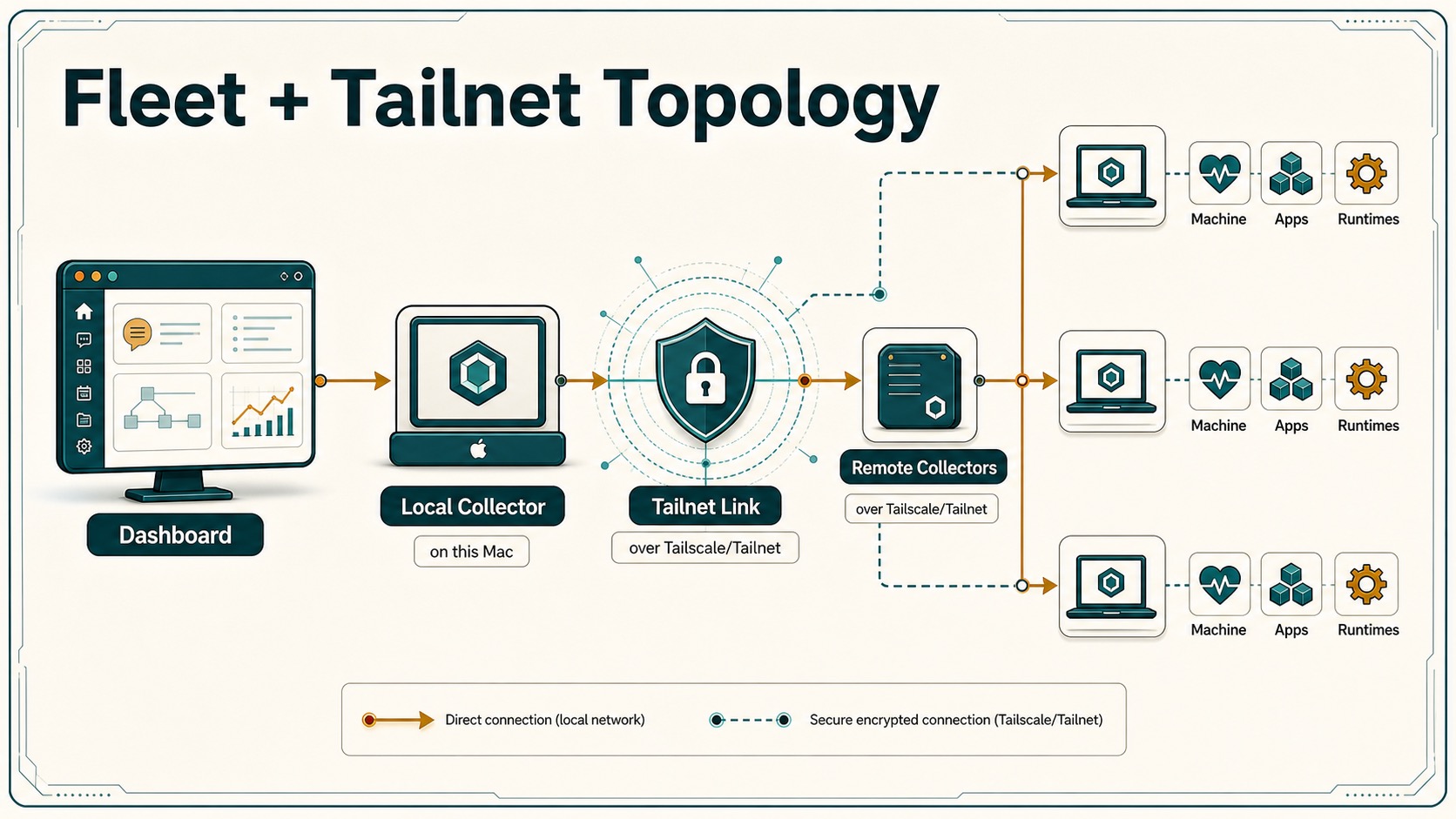
What the collector reports
Fleet asks each collector for a snapshot (POST /snapshot). A snapshot only reads local agent state:
- Hermes state, sessions, and logs
- Common runtime folders:
tasks,inbox,outbox,cron,logs,sessions - The process list, used only as a coarse running or not-running signal
Taking a snapshot doesn’t write files, change agents, install packages, or expose secret values. Other collector actions, such as updates or env changes, run only when you start them. See collector endpoints.
Add another machine
For a machine that only runs agents, such as an agent host or small VPS, use collector-only setup.
-
On that machine, run:
./setup.sh --collector-onlyOn Windows:
powershell -ExecutionPolicy Bypass -File setup.ps1 -CollectorOnly - Setup selects Hivemind Link, installs what it needs to build it, and prints a one-time Tailscale authorization URL.
- Open that URL on your main HivemindOS hub, or any device signed into the same Tailscale account, and approve the collector.
- Return to Fleet Hive. The machine appears automatically once Link connects.
On macOS, setup also asks once for Downloads access so the machine can receive Hive Drop files. A remote transfer never shows that prompt. If the check wasn’t completed, the Mac reports file delivery as unavailable and the sender stops before uploading. For an unattended Mac, first deploy a Privacy Preferences Policy Control (PPPC) profile through device management, then rerun setup with HIVEMINDOS_PREPARE_DOWNLOADS_ACCESS=required. An unmanaged headless install can’t grant protected-folder access silently.
To install only the collector service by hand on macOS or Linux, run ./scripts/install-telemetry-collector.sh.
Collector-only machines
Collector-only mode installs the collector and its few dependencies. It skips the full workspace install, the Next.js build, and the dashboard dev server, which are the steps that run small hosts out of memory.
- Setup remembers the mode, so later
./setup.shorhive-updateruns stay collector-only. - Fleet shows the machine as a Collector Node. Its remote and automatic updates use the slim path: git pull and a collector restart.
- To convert back to a full install, run
./setup.sh --full. On Windows, pass-Fulltosetup.ps1. - To force one full update without converting, run
./scripts/update-hivemindos.sh --full.
How Hivemind Link works
Link is the default network path. Setup starts hivemind-linkd, a small sidecar that joins your own Tailscale account. The collector binds to 127.0.0.1, and the sidecar exposes port 8787 only inside your Tailnet. No HivemindOS server proxies model or collector traffic.
When the machine has no system Tailscale route, the dashboard reaches remote collectors through the local sidecar instead of dialing Tailnet addresses directly.
Keep these URL shapes distinct when troubleshooting:
- Local collector:
http://127.0.0.1:<collector-port>/... - Local Link sidecar status:
http://127.0.0.1:8788/status - Remote collector through Link:
http://127.0.0.1:8788/peer/<tailnet-host%3A8787>/...
Only the local collector port can move, for example from 8787 to 8789 when 8787 is taken. The active port is recorded in ~/.hivemindos/collector.env. Don’t rewrite /peer/... URLs to that port. They belong to the sidecar on 8788. If they’re rewritten, remote chat fails fast with a 404 that looks like a missing Hermes chat bridge, even when the remote collector is healthy.
Use ./setup.sh --system-tailscale only when you want the full system Tailscale client for Tailscale SSH, rsync repair, and HivemindOS-managed Syncthing. See Hivemind Sync and Tailscale.
Restrict access with Tailscale ACLs
If you run system Tailscale:
- Keep the collector private to the Tailnet. Don’t use Funnel.
- Tag devices, for example
tag:agent-nodeandtag:agent-control-room. - Allow only the control-room device to reach port
8787:
{
  "acls": [
    {
      "action": "accept",
      "src": ["tag:agent-control-room"],
      "dst": ["tag:agent-node:8787"]
    }
  ]
}
Signed work receipts
Every agent the collector reports gets its own did:key identity (Ed25519). Each machine holds its own key and signs a delegation for each of its agents, so a receipt can be traced from machine to agent.
When a Work-board task completes, the collector on the agent’s machine signs a work receipt over the workspace git state: remote, branch, commit, and whether there are uncommitted changes. Receipts are appended to Operations/Brain Services/Work Receipts.jsonl in the vault, or ~/.hivemindos/work-receipts.jsonl if the vault is unavailable. The dashboard checks signatures offline and marks valid receipts as verified on the task.
This works for any repo. Projects don’t need to be hosted on or linked to GitLawb. A GitLawb link adds a separate attestation at push time.
Clean up stale nodes
Reinstalls, hostname changes, and Link resets can leave old registrations on your Tailnet. Tailscale then adds a -1 or -2 suffix to the new node’s name. Two tools keep the Tailnet clean:
- Cleanup route (
/api/tailscale/cleanup):GETreturns a dry-run list of removable devices, meaning devices offline past the stale window that are eitherhivemindos-*Link nodes or duplicates of a fresher hostname.POSTdeletes them. It needsTAILSCALE_API_KEYin~/.hivemindos/.env. The dashboard’s daily unattended sweep also needsHIVE_TAILNET_AUTO_CLEANUP=1, and it only ever removes offlinehivemindos-*nodes. - Ephemeral Link nodes (
HIVE_LINK_EPHEMERAL=1): Link registers as an ephemeral Tailscale node, so stale registrations delete themselves after going offline. Pair it with a reusableHIVE_LINK_AUTH_KEYso the node can rejoin without a sign-in after Tailscale removes it.